_edited.png)

SSD vs HDD Upgrades in 2026 Which Drive Is Best for Speed Durability and Value
- jayden eyles
- Jul 23
- 8 min read

Storage upgrades used to be simple. If a computer felt slow, adding a bigger hard drive gave it more room. In 2026, the better question is not just “How much storage do I need?” It is “What kind of storage will make this device feel better to use?”
SSDs and HDDs both store files, apps, games, photos and operating systems. They do the same job, but they do it in very different ways. That difference affects speed, reliability, battery life, noise, heat and price.
An SSD, or Solid State Drive, stores data on flash memory chips. There are no spinning parts inside. When the computer needs a file, the SSD finds it electronically, almost instantly. This is why apps open quickly, Windows or macOS feels more responsive, and large files move faster.
An HDD, or Hard Disk Drive, stores data on spinning magnetic platters. A moving read and write head travels across the surface of those platters to find or save information. It is a proven technology and still very useful, especially when huge capacity matters more than speed.

SSDs and HDDs work in completely different ways
The easiest way to understand the SSD vs HDD choice is to picture how each drive finds your data.
An HDD acts a bit like a record player. Inside the drive, circular platters spin at high speed. A tiny arm moves to the correct position and reads data from the platter. This mechanical movement takes time. It also creates vibration, heat and a little noise.
An SSD has no moving arm and no spinning surface. It stores data in NAND flash memory cells. A controller manages where data goes, how it is retrieved, and how wear is spread across the memory. Because access is electronic, an SSD does not need to wait for a platter to spin into the right position.
That design difference explains most of the real-world gap between the two.
A laptop fitted with an SSD can wake from sleep quickly, open a browser without delay, load apps faster and copy files at much higher speeds. A desktop with an HDD may still work fine for storing video files, backups or photo libraries, but it usually feels slower when used as the main system drive.
There are several common SSD types in 2026:
SATA SSDs
These use the older SATA connection. They are much faster than HDDs, but slower than modern NVMe drives.
NVMe SSDs
These connect through PCIe and offer much higher speeds. Most modern laptops and desktops use this style.
External SSDs
These connect by USB or Thunderbolt. They are useful for fast portable storage and editing large media files.
HDDs are usually found as 3.5-inch desktop drives, 2.5-inch laptop drives, or external desktop backup drives. They remain common in NAS boxes, media libraries and long-term storage setups.
The main differences come down to speed, moving parts and cost
The table below sums up the key differences for a 2026 upgrade decision.
Feature | SSD | HDD |
How data is stored | Flash memory chips | Magnetic spinning platters |
Moving parts | None | Spinning platters and moving head |
Speed | Very fast, especially NVMe | Slower, limited by mechanics |
Durability | Better against bumps and movement | More vulnerable to drops and shock |
Noise | Silent | Can click, hum or vibrate |
Heat | Usually lower in everyday use | Can run warmer in multi-drive setups |
Power use | Lower, especially in laptops | Higher due to spinning parts |
Capacity for the price | More expensive per terabyte | Cheaper per terabyte |
Best use | Operating systems, apps, games, active projects | Backups, archives, large media collections |
The biggest practical difference is how the computer feels. An old laptop with enough memory but a slow HDD can feel outdated even when the processor is still usable. Replace that HDD with an SSD and the same machine may boot faster, respond quicker and handle everyday tasks with far less waiting.
That does not mean HDDs have no place. They still make sense when someone needs many terabytes of storage without paying SSD prices.
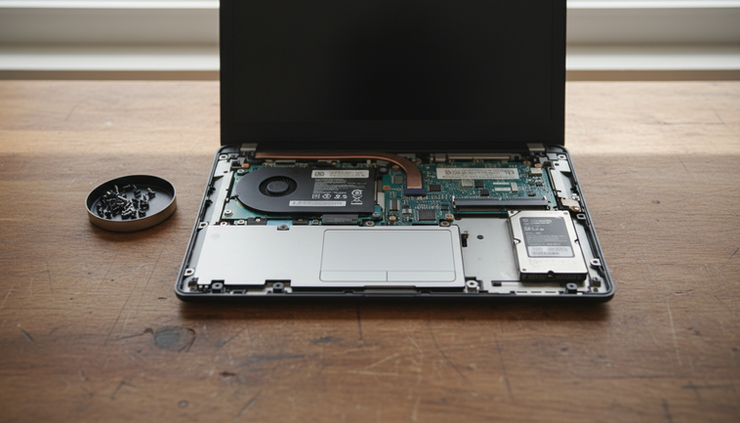
SSDs win clearly on speed
For most upgrades, speed is the main reason to choose an SSD. The difference is not subtle.
A traditional HDD has to move its read head to different parts of the platter. This is especially slow when opening many small files, which happens constantly during boot-up, app launches and system updates.
An SSD can access many small files quickly. That gives it a major advantage in everyday use, even when the headline transfer speed is not the whole story.
You are most likely to notice SSD speed when:
Starting the computer
Waking from sleep
Opening apps
Searching files
Installing updates
Loading game levels
Importing photos and videos
Moving large project folders
NVMe SSDs go further. They can handle very high read and write speeds, which helps with video editing, large game installs, virtual machines and heavy creative workloads. Not every task needs the fastest NVMe drive, but using any decent SSD as the main drive is one of the most effective upgrades for an older computer.
For gaming, an SSD will not usually raise frame rates by itself. The graphics card and processor still do that work. What an SSD can improve is loading time, texture streaming and the delay between launching a game and actually playing it.
For general home use, the upgrade can feel even more dramatic. A computer that once took several minutes to become usable may feel ready within seconds after moving the operating system to an SSD.
SSDs are more durable because they have no moving parts
Durability is another major SSD advantage. HDDs depend on precise mechanical movement. The platters spin, the head moves, and the internal parts must stay aligned. A hard knock while the drive is running can cause damage.
SSDs avoid that problem because they have no spinning discs or moving read heads. This makes them better suited to laptops, portable drives and devices that get moved around often.
That does not make SSDs indestructible. They can still fail due to controller issues, electrical faults, firmware problems or worn flash cells. Any drive can fail, so backups still matter. The key point is that SSDs are less vulnerable to physical shock.
This matters in daily life. A laptop in a backpack, an external drive used while travelling, or a mini PC mounted behind a television all benefit from storage that is less sensitive to movement.
HDDs can last for years when treated well. In a desktop tower or NAS enclosure that stays in one place, they can be dependable and cost-effective. But for portable devices, SSDs are usually the safer choice.

SSDs use less energy and run silently
Energy efficiency is often overlooked, but it can matter a lot in laptops, mini PCs and always-on systems.
An HDD needs power to spin its platters and move its actuator arm. An SSD has no motor, so it usually uses less power during light everyday work. The exact difference depends on the drive model and workload, but SSDs are generally better for battery life and lower power draw.
The benefits are easy to appreciate:
A laptop may last longer between charges
A small PC may produce less heat
A portable external drive may work more reliably from USB power
A quiet setup stays quieter because SSDs make no mechanical noise
Silence can be a real quality-of-life upgrade. HDDs often make soft clicking, humming or spinning sounds. In a gaming PC with several fans, that may not matter. In a quiet bedroom, living room or recording setup, it can.
SSDs can still get warm, especially high-performance NVMe models under heavy load. Some need a heatsink to maintain top speeds. Even so, for most everyday systems, SSDs are cleaner, quieter and more efficient than HDDs.
HDDs still offer excellent value and huge capacity
SSDs are better in many ways, but HDDs still have two big strengths: price per terabyte and large storage capacity.
If the goal is to store a huge amount of data cheaply, HDDs remain hard to beat. A large HDD is often a sensible place for:
Photo and video archives
Full system backups
Game libraries that are not played often
Media servers
CCTV footage
NAS storage
Old project files
Family documents and scans
A person editing video might keep active projects on a fast SSD, then move finished work to a large HDD. A gamer might install favourite games on an SSD, while keeping less-played titles on a high-capacity HDD. A home server might use several HDDs because capacity matters more than instant app loading.
This is where HDDs still shine. They give plenty of room without the higher cost of equivalent SSD storage. For large backups, that value can matter more than speed.
The trade-off is patience. Copying huge files to an HDD can take longer. Restoring from a backup may be slower. Searching through many small files can feel sluggish. If the drive mostly stores data that is rarely opened, those drawbacks may be acceptable.
The best upgrade in 2026 is often a mix of both
For many desktops and larger laptops, the smartest setup combines an SSD and an HDD.
Use the SSD for the things that benefit from speed:
Operating system
Main applications
Current games
Active creative projects
Frequently opened files
Use the HDD for the things that benefit from cheap space:
Backups
Media libraries
Archives
Old downloads
Large files that do not need fast access
This hybrid approach gives the best balance of speed, durability and value. The SSD makes the computer feel fast. The HDD keeps storage costs under control.
If there is only room for one drive, the choice depends on the device. For a laptop, an SSD is usually the better single-drive upgrade. For a desktop used mainly as a media archive or backup machine, a large HDD may still make sense. For a main everyday computer, the SSD should take priority.
A good rule is simple: put anything you use often on an SSD, and put anything you mainly keep on an HDD.

How to choose the right drive for your upgrade
A good storage upgrade starts with the job the drive needs to do.
Choose an SSD if speed matters. This is the clear choice for a boot drive, a laptop upgrade, a gaming system, a work machine, or any computer that feels slow during normal use. Even a SATA SSD is a major improvement over an HDD. If the device supports NVMe, that is usually the better option for a new purchase.
Choose an HDD if capacity matters most. This is the practical choice for bulk storage, backups and archives. It is also useful when the budget is limited and several terabytes are needed.
Choose both if possible. A mid-sized SSD paired with a large HDD gives a strong balance for desktops, home servers and creative setups.
Before buying, check a few details:
The physical size your device accepts
Whether it uses SATA, NVMe or another connection
The maximum drive capacity supported
Whether you need mounting screws, a bracket or an enclosure
Whether you plan to clone the old drive or install the system fresh
Back up important files before any upgrade. Storage migration is usually straightforward, but mistakes happen. A backup turns a stressful upgrade into a manageable one.
The right choice depends on speed needs and storage habits
The debate around SSD vs HDD Upgrades in 2026 Which Drive Is Best for Speed Durability and Value has a clear pattern. SSDs are the better choice for performance, portable devices, quiet systems and day-to-day responsiveness. HDDs remain valuable when the goal is maximum storage for the least money.
For most people upgrading a main computer, the answer is SSD first. It is the upgrade most likely to make the system feel newer, faster and easier to live with. For large archives and backups, HDDs still earn their place.
The strongest setup is not always one technology replacing the other. It is using each one where it works best: SSD for speed, HDD for space.


Comments